Monday, 12 January 2015

Two Commands in One Mouse Button


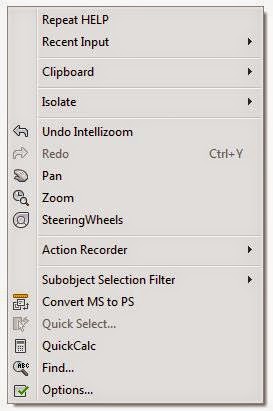
For those who have used AutoCAD long enough (there are lots of us still around), historically there were 3 ways to “Enter” at the command line: the Enter key, the space bar, and the right mouse button.  AutoCAD still treats the space bar as enter (and the Enter key is still Enter, too!), but nowadays, one default out-of-the box setting is different: hitting the right mouse button in a command brings up a shortcut menu.   

While this can be aggravating for us old-schoolers, there is a way we can get the right-mouse button to be BOTH Enter key and context menu! (depending on how long you keep the mouse button pressed, you get one or the other)  Here's how: you can define the time sensitive right click settings in the OPTIONS dialogue, under USER PREFERENCES > Right-Click Customization.


At the top of the dialog is a check box: Turn on time-sensitive right-click.
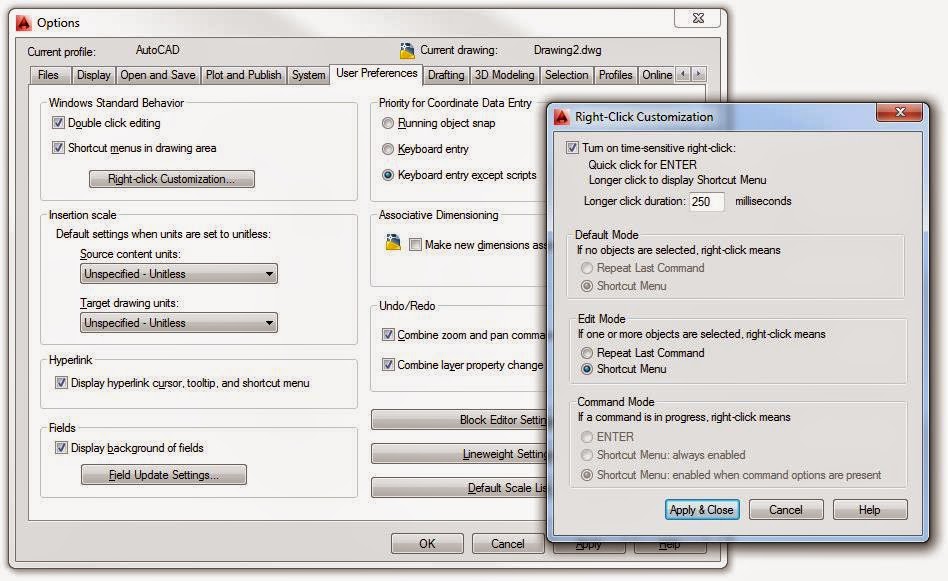

When this is activated, the right mouse button now has two settings: a Quick click is ENTER, and a Longer click is shortcut menu.  

Below there is an editable value box: this is the length of time in milliseconds the right mouse button needs to be pressed to activate a 'longer click', the default setting is 250 milliseconds (1/4 second) - Any longer right-click press than 1/4 second is shortcut menu, any shorter is ENTER.


If you choose not to have time-sensitive right-click active, below there are three settings available to modify: 

Default Mode: This setting dictates what happens when you right-click with no active selection.
Edit Mode: This dictates what happens when you right-click while there is an active selection set.
Command Mode: This controls how AutoCAD responds to a right-click action during a command.

With time-sensitive right-click active, Default mode and Command mode will behave depending on the duration of the right mouse press; the Edit mode setting can still be set to either Repeat last command or shortcut menu.

Disabling time sensitive right-click allows you to customize the right mouse button for each of the three situations independently, but with it active, you can have it both ways, which allows old-school guys like me to have the functionality of the shortcut menu, and history of the enter key!

One thing: if you uncheck Shortcut menus in the drawing area check box, right click customization is unavailable, and right-click will always be the same as Enter.

Are you a right-click ENTER user? Let me know in the comments area!


Monday, 5 January 2015

Create your own AutoCAD Shortcut Keys

Last time, I showed a keyboard shortcuts graphic, and hinted about creating my own shortcuts.  Today, we will look at exactly how to do that, and it all happens in the Customizable User Interface (CUI).

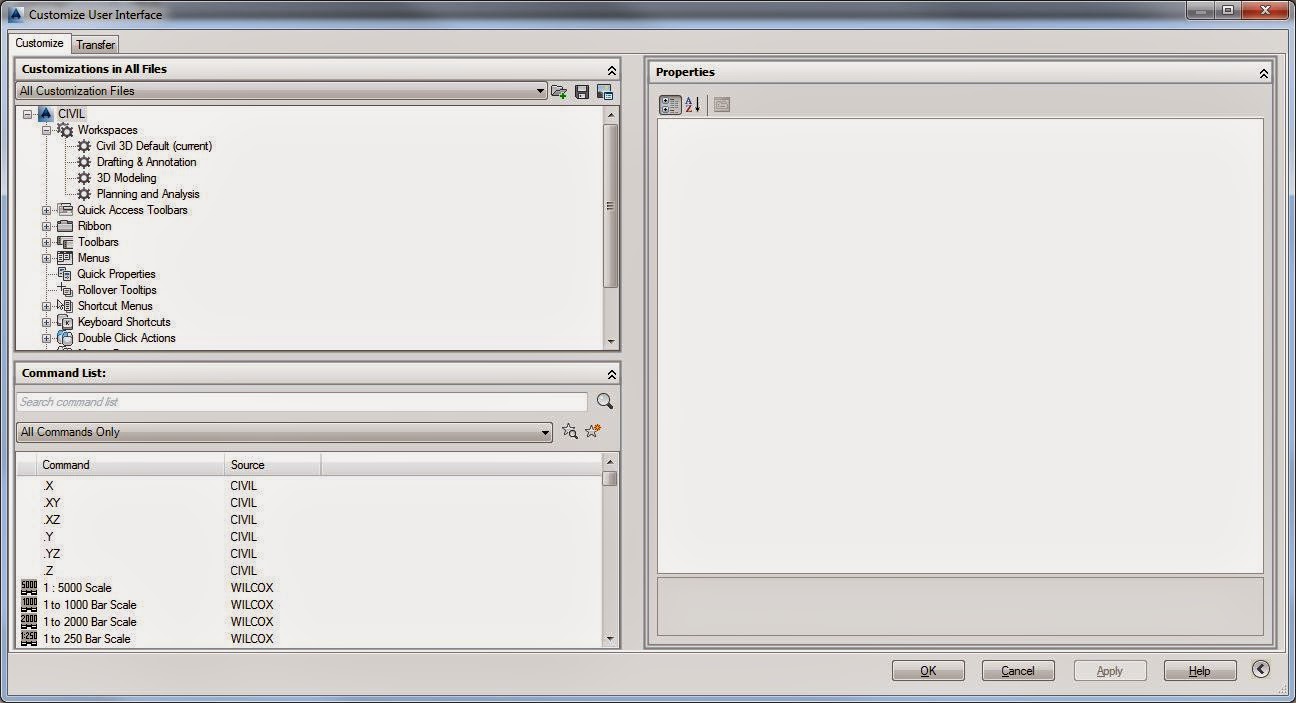
Type CUI at the command line to start it, and you should see a dialog something like the one I have shown here.

There are several distinct areas: 
Upper Left: Customizations
Lower Left: Command List
Right side:  Properties

To create a keyboard shortcut, we need to do 3 things: 
1. Locate the command in the command list, 
2. Place the command in the Keyboard Shortcut list, and
3. Assign a shortcut to the command.

In this example, let's assign Paste to Original Coordinates to CTRL+SHIFT+V (I will reassign Paste as Block to CTRL+SHIFT+B later, using the same method).

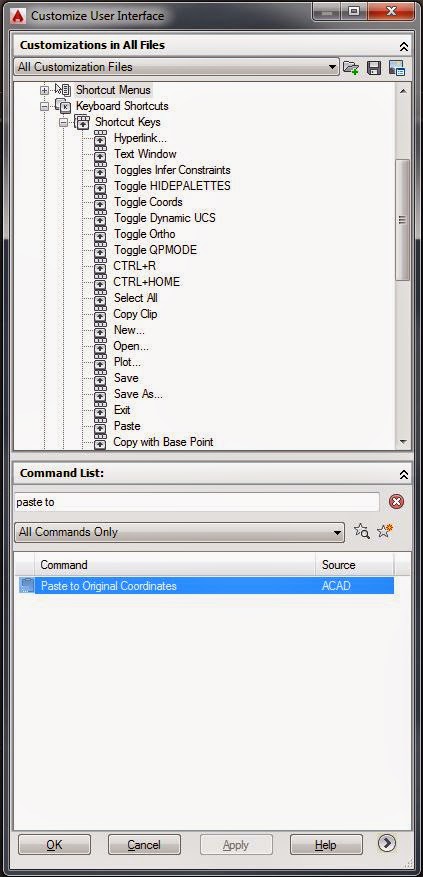
Firstly, in the upper left customizations pane, find and expand Keyboard Shortcuts, and Shortcut Keys.  Here you will see a list of existing shortcut keys.  We will add a command to it: Paste to Original coordinates.

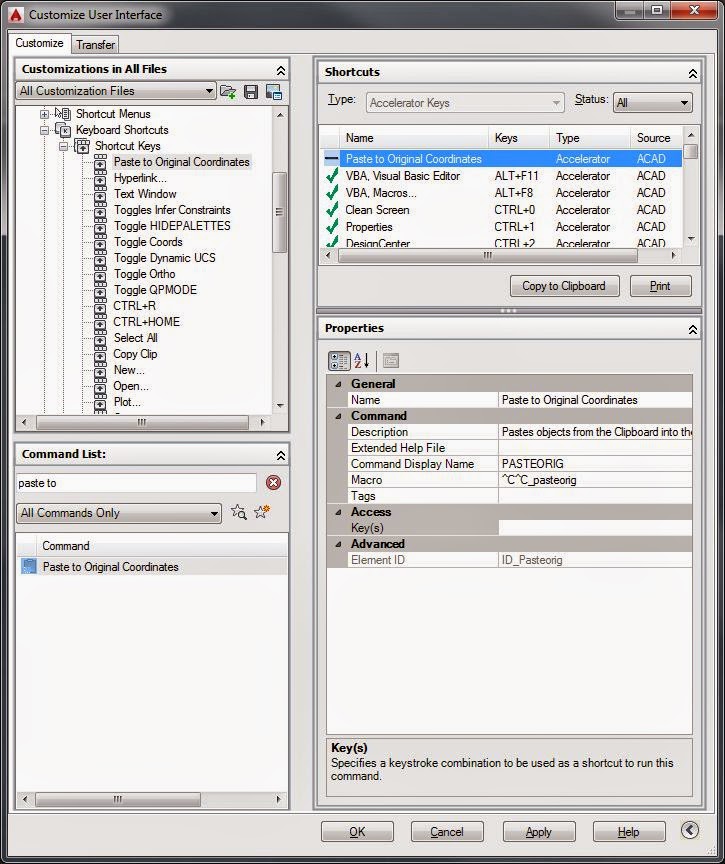
In the Command list pane (lower left), there is a search box, type in "paste to", the command list below should show Paste to Original Coordinates.  Click the command, and drag it up and drop it in the shortcut keys list above. Next, select Paste to Original Coordinates in the Shortcut keys list, and to the right you will see it listed in the Shortcuts area, and also see properties for it displayed below.

If you do not see the shortcuts area in the right side of the CUI, click the little right pointing chevron in the lower right corner, and it will appear.  

In the properties area, click  the Key(s) box in the Access area, and then click the ellipsis to the right; a shortcut key press dialogue will appear.  Press CTRL+SHIFT+V, and it will appear in the box.


Click OK (click OK again to bypass the alerts),click Apply, then OK to exit the CUI.


That's it! CTRL+SHIFT+V is now Paste to Original Coordinates.


To get Paste as Block back as a keyboard shortcut, you can search for Paste as Block in the upper shortcuts pane, and re-map that to CTRL+SHIFT+B.

With all this customization, it is possible to have multiple commands mapped to the same keyboard shortcuts. For example, before I remapped paste as block to CTRL+SHIFT+B, it was still CTRL+SHIFT+V, same as my new mapping.  How does AutoCAD deal with multiple assignments? The same way it deals with other multiples, it loads the first instance it finds, and ignores the others.

The shortcuts list in the shortcut keys area of the CUI can be rearranged, and AutoCAD uses that order to load the mappings: higher in the list means it gets loaded earlier.

A good idea to make sure your customizations get loaded is to move those commands to the top of the shortcut keys list in the Customizations pane.

Are you a keyboard user? Please share your thoughts on keyboard shortcuts, and customization, I'd be happy to hear from you!
 

Sunday, 28 December 2014

More AutoCAD Keyboard Ctrl

After several days of roast turkey, hot turkey sandwiches, turkey soup, and the oh-so-Canadian Boxing Day shopping, it's time to shake off the Tryptophan and get back to AutoCAD.

Staying in the spirit of Ctrl keyboard features and tools, I have created a graphic showing all the out-of-the-box AutoCAD Ctrl + keyboard shortcuts.

I have verified these in AutoCAD 2014 and Civil 3D 2014 with the results as shown, and also have run most on AutoCAD 2015, with no differences noted; please let me know if your results differ.


I have done a little visual sorting as well:

Blue    =  Palettes and display
Yellow =  File operations
Green =  Toggles and Variables
Pink    =  Selection and Clipboard
White  =  No action

This is the out-of-the-box configuration; notice there are plenty of unassigned keys for your own customization!

For example, I map CTRL+SHIFT+V to _Pasteorig (paste to original coordinates), since I do this often. I try to avoid changing any default settings, with the exception of F1, which I re-map to Cancel, since it drives us all nuts when we accidentally hit the F1 key and AutoCAD launches Help.

I hope this helps you try and keep track of all the built in shortcuts; Happy CADding! 

Update: FYI, Here are the out-of the box CTRL+SHIFT shortcuts:
CTRL+SHIFT+C   Copy with base Point
CTRL+SHIFT+H   Toggle HIDEPALETTES
CTRL+SHIFT+I     Toggle Infer Constraints
CTRL+SHIFT+L    Select Previous
CTRL+SHIFT+P    Toggle QPMODE
CTRL+SHIFT+S    SAVEAS
CTRL+SHIFT+V    Paste as Block

2015-01-06 Update: I have corrected the CTRL+N (NEW) and CTRL+M (no command) keys in the graphic


Thursday, 18 December 2014

Having [Ctrl]


There are plenty of ways to input commands in AutoCAD: the Ribbon, Toolbars, even drop down menus [If you don't see your drop down menus, set MENUBAR = 1].  Being a user since R11, I still do a lot of command entry using the keyboard (but I have abandoned the screen menu). 

Aside from typing in commands, there are lots of built-in keyboard shortcuts in AutoCAD. I'm sure most everyone knows [ctrl] + C to copy to clipboard, and [ctrl] + V to paste from the clipboard, but most every key pressed with [ctrl] is also a command, a variable, or a toggle.


Let's look at some of the most common AutoCAD [ctrl] button shortcuts:

[ctrl] + A selects all objects
[ctrl] + B toggles SNAPMODE
[ctrl] + D toggles Dynamic UCS
[ctrl] + E cycles Isoplane modes
[ctrl] + G toggles GRIDMODE

[ctrl] + C copies objects to the clipboard
[ctrl] + X deletes objects and puts them on the clipboard
[ctrl] + V pastes objects from the clipboard
[ctrl] + Z Undo command

[ctrl] + [shift] + C copies to the clipboard with a base point that you pick
[ctrl] + [shift] + B pastes from the clipboard as a block

[ctrl] + N brings up NEW dialogue box
[ctrl] + O brings up the OPEN dialogue box
[ctrl] + P brings up the PLOT dialogue box

[ctrl] + 1 opens/closes the Properties Palette
[ctrl] + 2 opens/closes Design Center
[ctrl] + 3 opens/closes the tool palette
[ctrl] + 4 opens/closes the Sheet Set Manager
[ctrl] + 9 shows/hides the command line
[ctrl] + 0 shows/hides all toolbars

[ctrl] + [tab] cycles through open drawings
[ctrl] + [page up]/[page down] cycles through layouts in a drawing

There are plenty more, experiment to see what others you can use.

What's your favourite? comment and share!

Sunday, 14 December 2014

Welcome to Frozen Layers!

Edmonton January: Blue sky, white everything else.
Being Canadian has both benefits and challenges.  For example, we have free health care, hockey, and poutine.  There may be more benefits besides those to being Canadian, but I think I've covered the important bits already!

There is a slight downside to Canada-winter: those 3 or 4 (or more!) months when you only see your neighbour when you're both shoveling the driveway clear of the overnight snowfall, or perhaps pushing his car when he is stuck at the end of the street.  I know, soon enough, it will be April, and folks will start venturing outside once again.  Barbecues will be uncovered, the snow brushes get put away (till that big storm in May), and thoughts turn to the garden once again.  It isn't all bad, really: having bad weather helps appreciate the good weather even more.

The weather doesn't inhibit my love of AutoCAD, though, and I figure after a couple years writing on internal blogs, it's high time to share publicly tips, solutions, and news about AutoCAD.  So, here we go! 

After noting that every cool (and every awful) CAD pun has long since been used, I chose Frozen Layers, since it is not only a part of AutoCAD, but a part of being Canadian.  Since I find it beneficial when understand how things work, I'll try to explain things here best I can.

Time to grab a double-double!